
Set Up IMAP in Outlook for Your Business Email Account Guide
If you would like to configure Outlook to use your Outlook.com account via IMAP, please follow the steps below.
Note: Please replace the email address, server URL, and password shown in the steps with yours that your email provider advised.
| Protocol | Server | Port | Encryption |
|---|---|---|---|
| IMAP | imap-mail.outlook.com | 993 | TLS |
| SMTP | smtp-mail.outlook.com | 587 | STARTTLS |
| POP | pop-mail.outlook.com | 995 | TLS |
Detailed step-by-step instructions
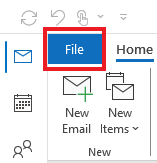
Click on the File tab in the upper-left corner of the Outlook window.
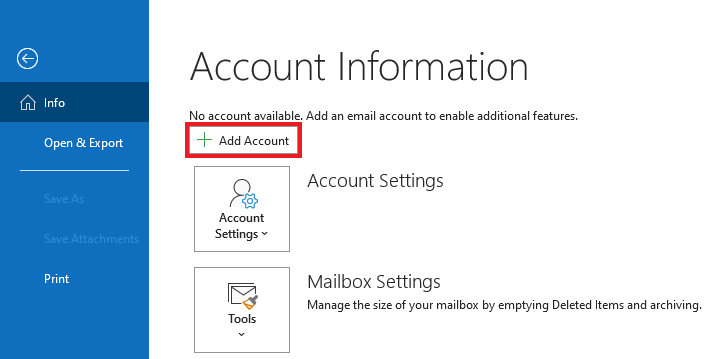
Click Add Account.
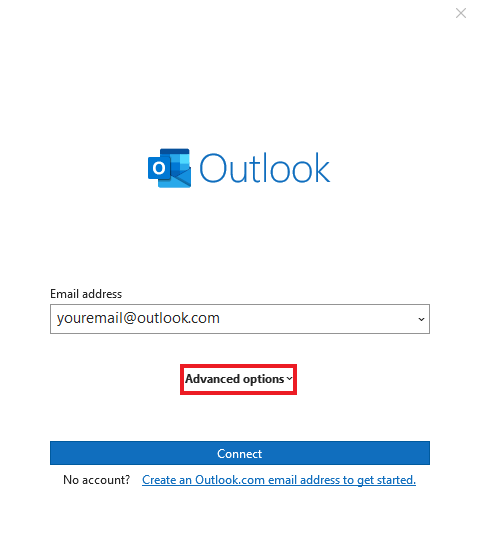
Enter your email address. Click on Advanced Options.
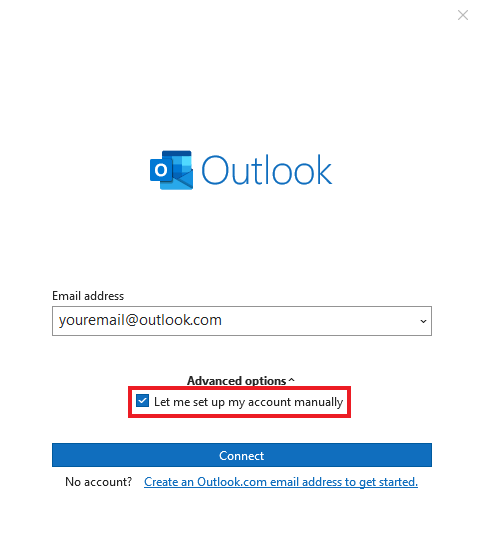
Check Let me setup my account manually. Click Connect.
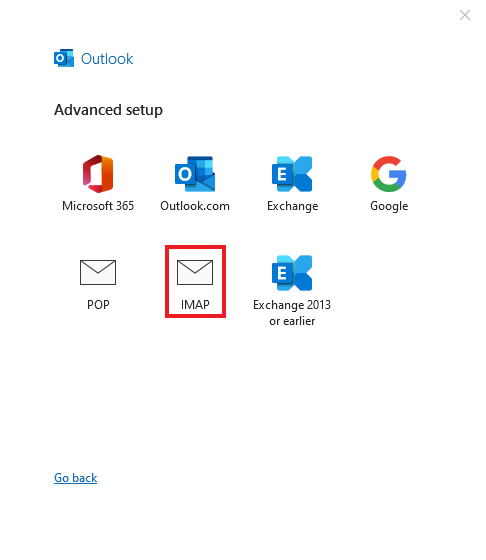
Select IMAP
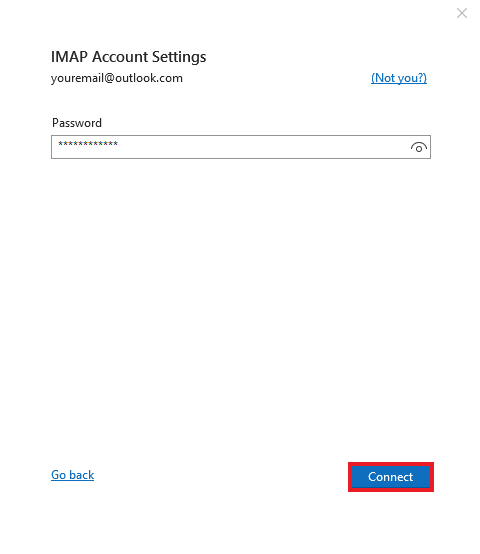
In the IMAP Account Settings window:
Enter your password and Click Connect to add the account
Click Done to close the window.
Ready to grow your business online? Contact us today and let Realweb Website Design & SEO Services build a professional, results-driven website for your business.